Get your Claude API key.
The AI features in our software run on Claude, made by Anthropic. To use them, you need your own Claude API key. It takes about ten minutes, and you only do it once.
Why you need a key
The key connects our software to your own account with Anthropic. Without one, everything that doesn't use AI still works, but summaries, drafting and other AI features won't.
It's between you and Anthropic
Your client files go straight from your computer to Anthropic. Nothing is ever sent to AssessForge. We only receive a licence check, with no client data.
You pay Anthropic directly
Anthropic bills your account for what you use, at their rates, with no markup from us. You can set a monthly spend limit in the Console.
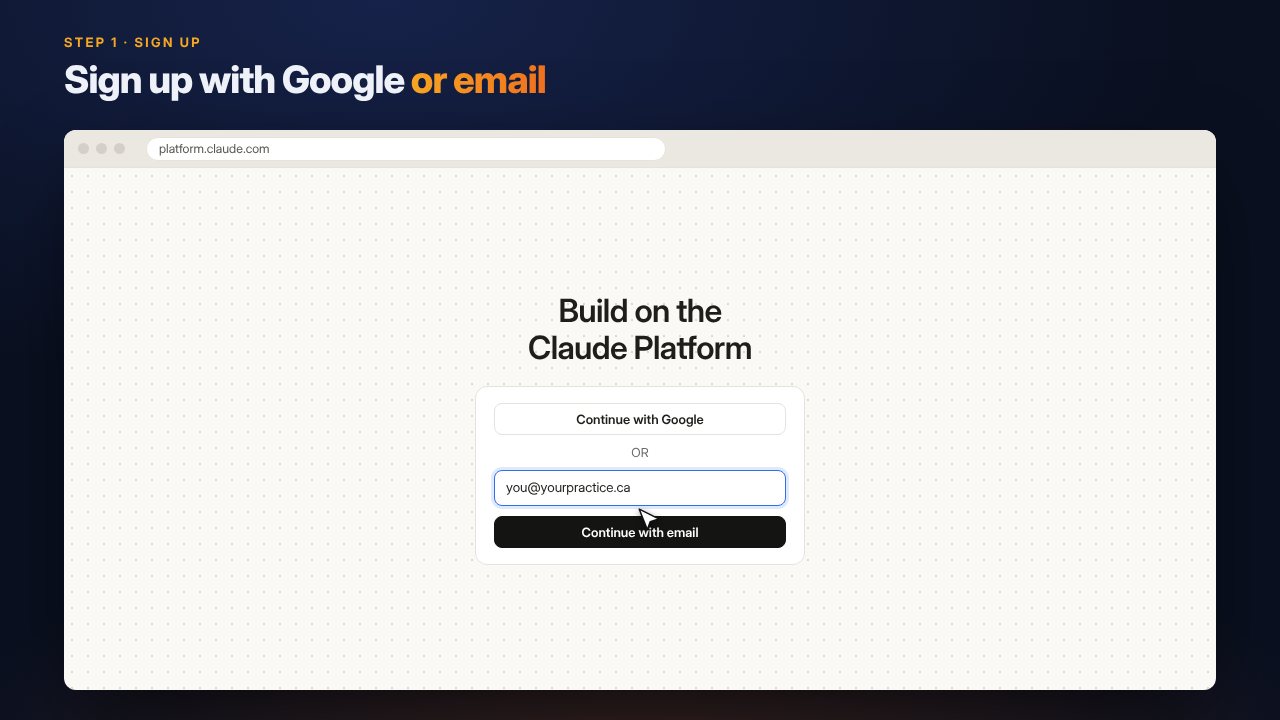
Sign up at platform.claude.com
This is Anthropic's developer platform, called the Claude Console. It's separate from the regular Claude chat app, and a Claude chat subscription can't be used here.
Choose Continue with Google, or enter your email and choose Continue with email, then follow the link Anthropic sends you.
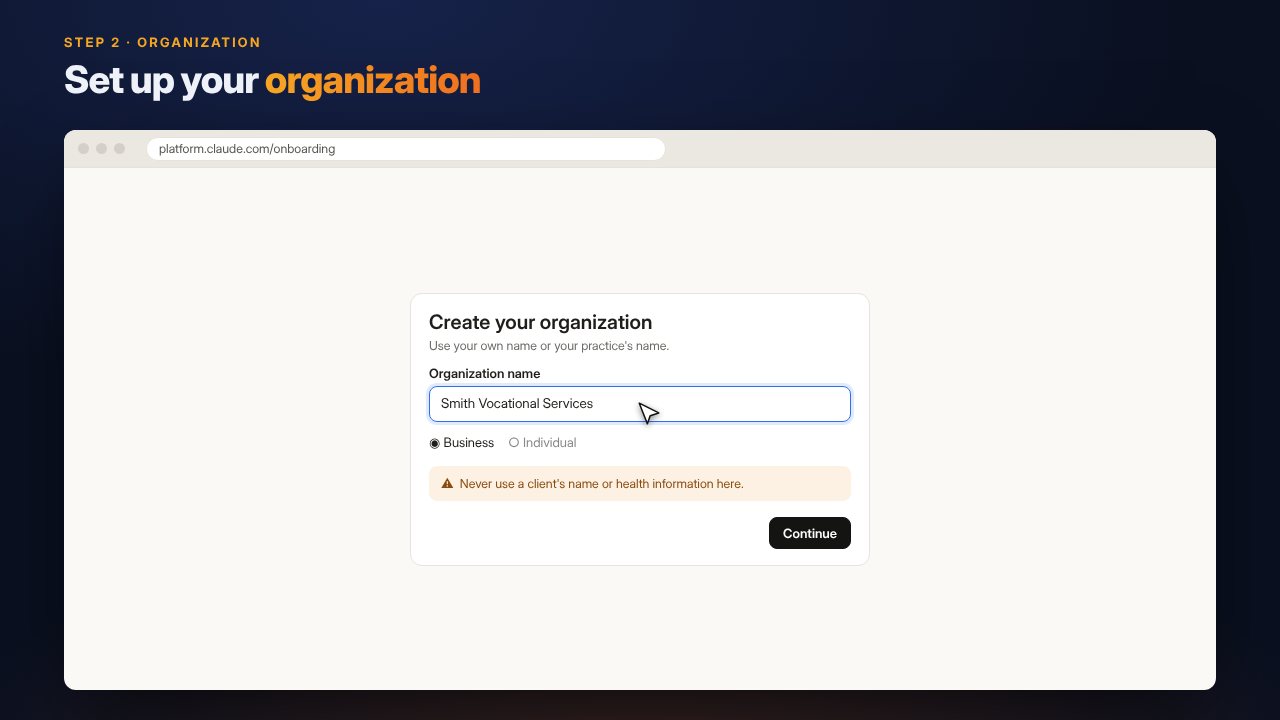
Set up your organization
Follow the prompts to name your organization. Use your own name or your practice's name.
Never use a client's name or any health information in your organization name, your profile or your billing details.
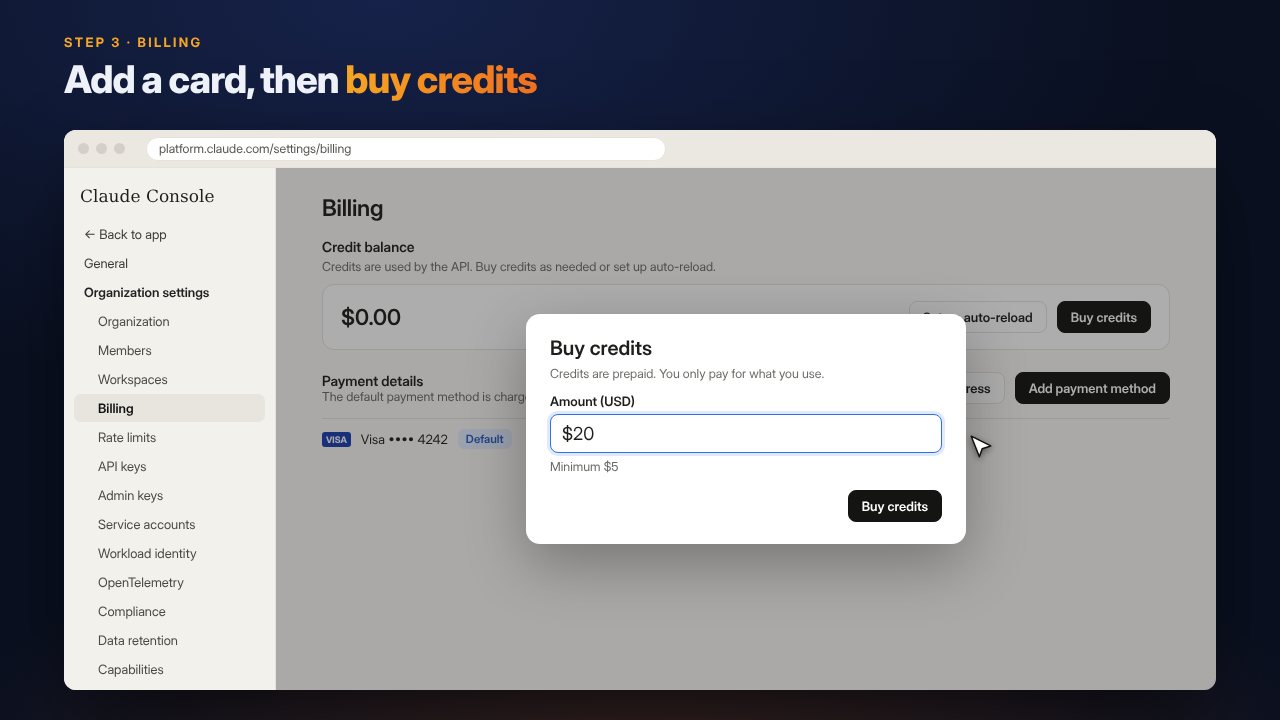
Add a card, then buy credits
In the left menu, open Billing. Click Add payment method and enter your card.
Then click Buy credits. The minimum is $5 (US), and about $20 is a comfortable start. Credits are prepaid, and you only pay for what you use.
Create your API key
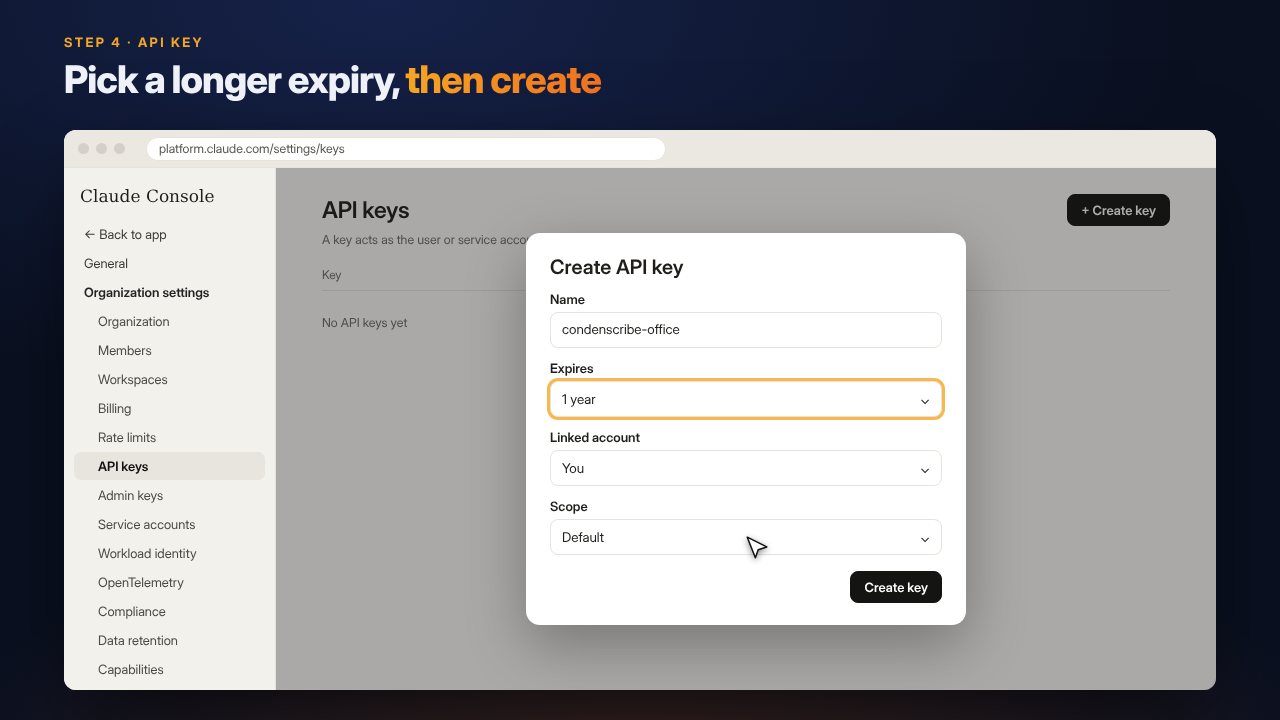
In the left menu, open API keys and click Create key. Give it a simple name, such as "condenscribe-office".
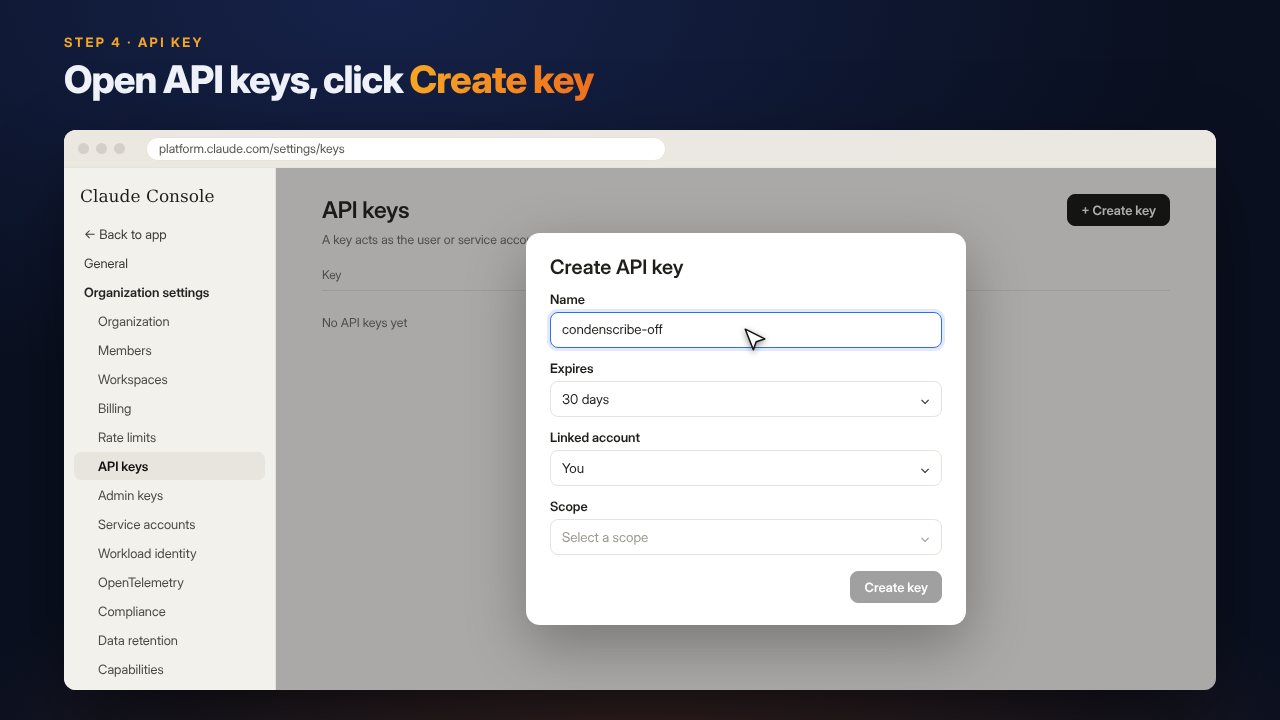
Choose a longer expiry
Expires is set to 30 days. Pick a longer option, or your key will stop working after a month.
For Scope, choose Default. Then click Create key.
Copy it right away
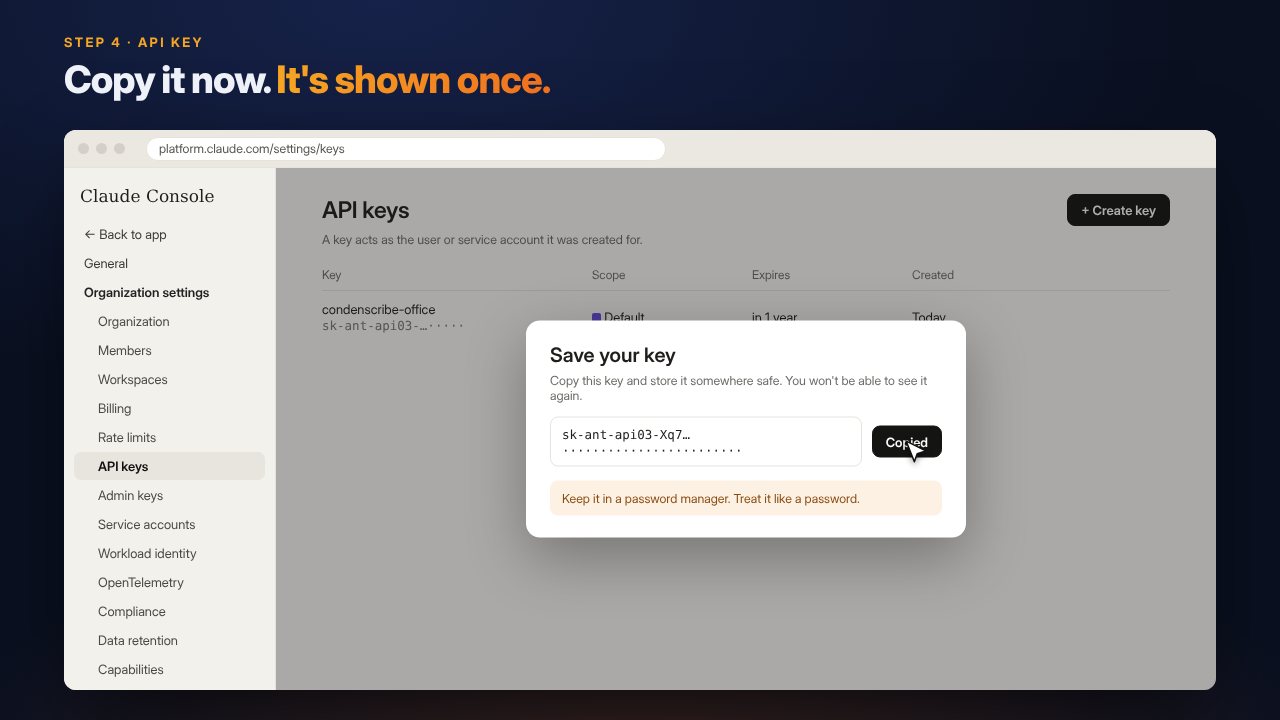
Your new key starts with sk-ant-. Copy it straight away and keep it somewhere safe, such as a password manager. Anthropic only shows it once.
Paste it into the program
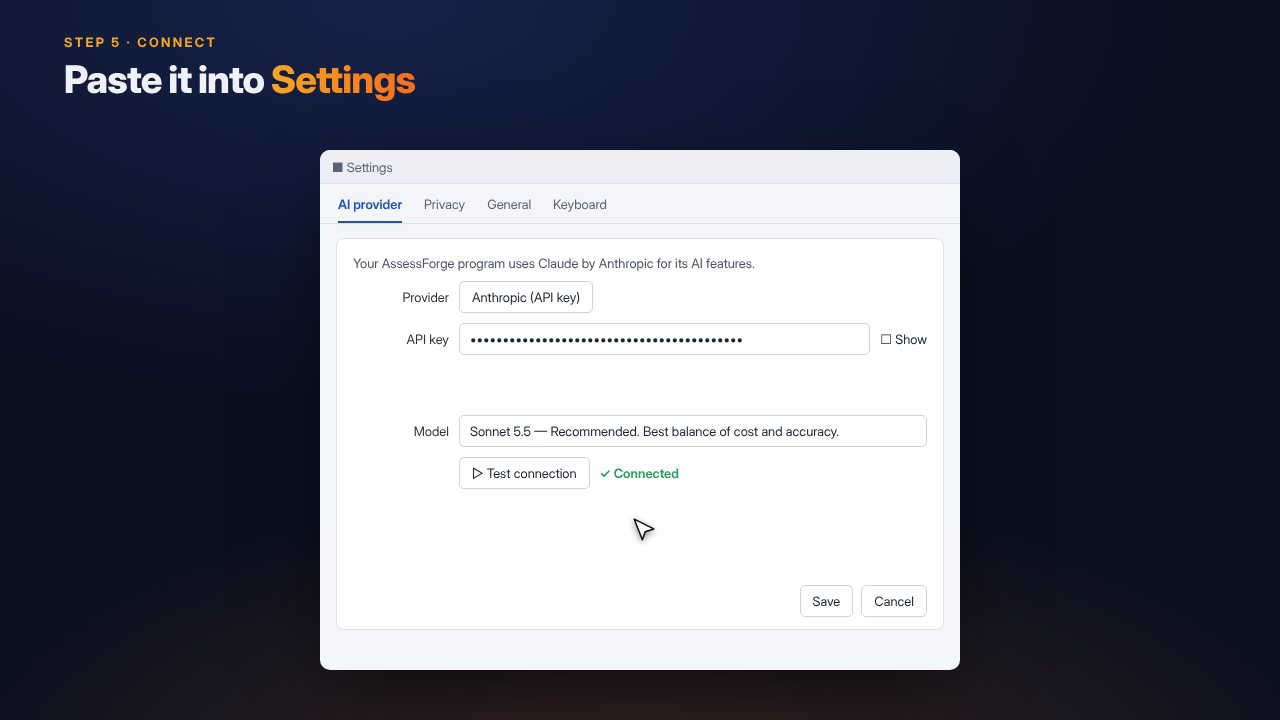
- Open Settings in CondenScribe, VocScribe or OccuScribe. In OccuScribe it's the AI assistant tab; in the others, AI provider.
- Set Provider to Anthropic (API key) and paste your key.
- Choose Sonnet 5.5, the recommended model.
- Click Test connection, then Save.
Your key is stored on your computer only, never inside case or assessment files.
Anthropic's screens can change. If something looks different, contact us and we'll help.